Req 2.6: Support dynamic, conditional configuration profile...
📋 Requirement Details
Req 2.6: Support dynamic, conditional configuration profiles based on device compliance, organizational unit, and user role.
⚙️ Technical Demonstration
IMTLazarus completely satisfies this requirement through a modular, object-oriented policy design engine. The platform allows DepEd administrators to create, combine, and automatically enforce dynamic configuration profiles. These profiles adapt instantly based on institutional variables, including the assigned Organizational Unit (OU), specified user roles (e.g., teachers, staff, or students), and multi-layered content compliance filters.
The dynamic structure functions through the following architectural characteristics:
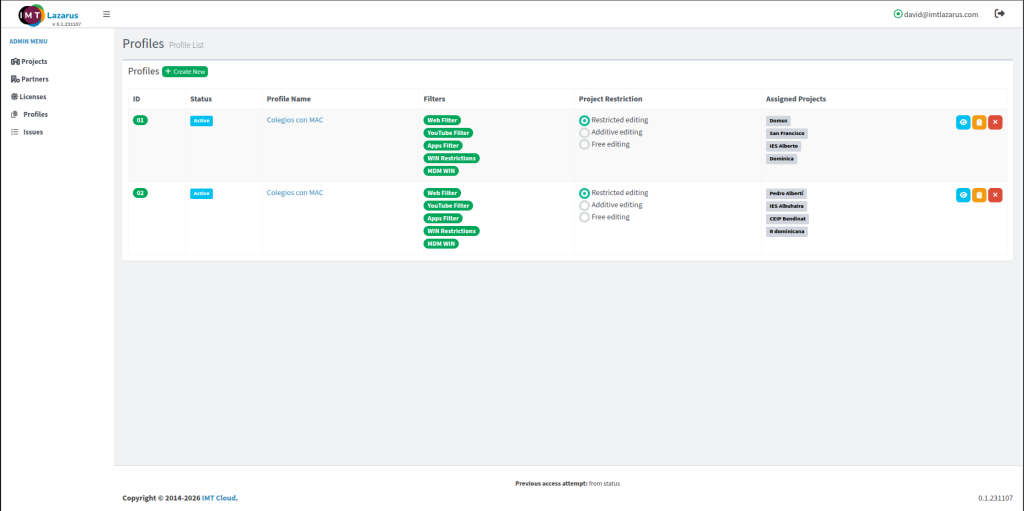
- Modular Filtering Blueprints: Rather than relying on rigid, one-size-fits-all policy templates, configurations are constructed by stacking independent sub-filters (such as Web Filters, YouTube Filters, and Apps Filters) as shown in the comprehensive overview interface (2.6-1.png).
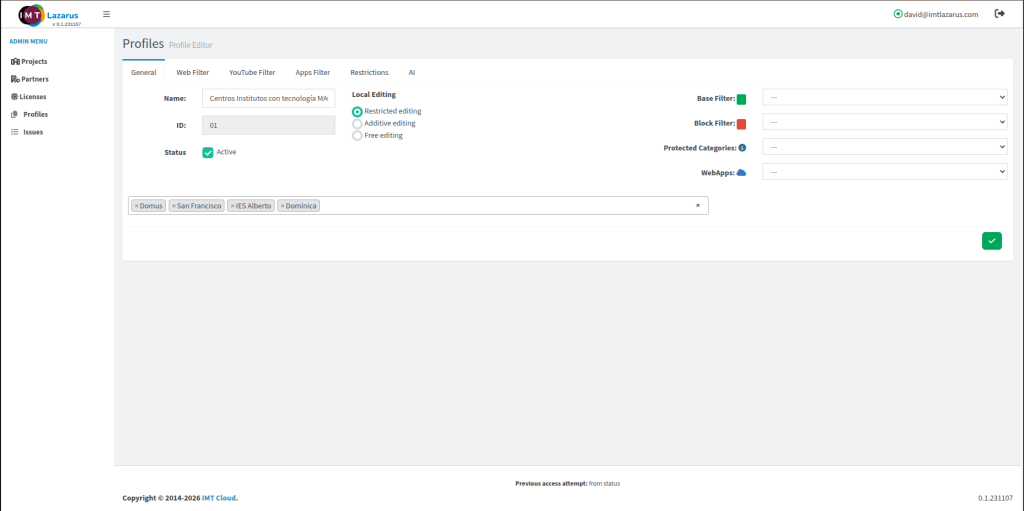
- Multi-Tenant Project Mapping: As detailed in 2.6-2.png, profiles can be mapped across variable project scopes (such as Domus, San Francisco, or IES Alberto). This ensures that policies scale dynamically to match DepEd's nested regional, division, and school-level organizational structures.
- Granular Rule Enforcement Tiers: Within a single profile, administrators can precisely configure underlying filtering components:
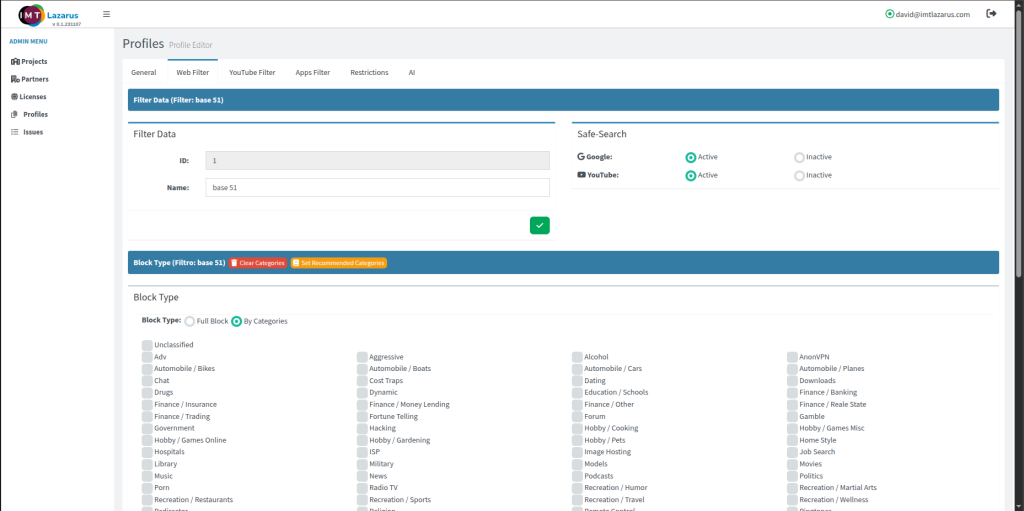
- Web Filtering & Search Compliance: Enforces category-specific blocks (e.g., blocking Porn, Dating, or Gamble) while keeping mandatory Google and YouTube SafeSearch features continuously Active (2.6-3.png).
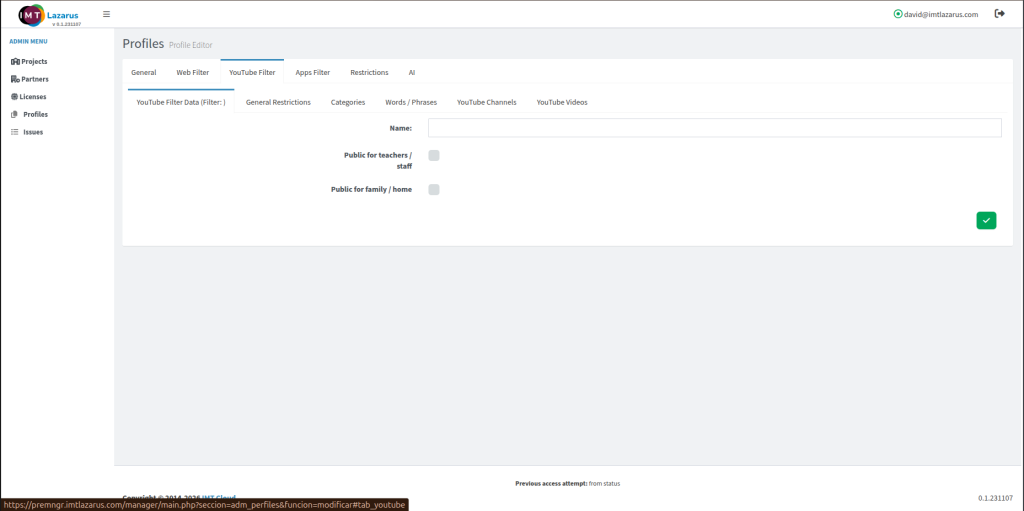
- Role-Based Content Tuning: Leverages role-based check boxes like Public for teachers / staff to dynamically loosen or tighten search criteria and keyword exception lists based on the authenticated user (2.6-4.png).
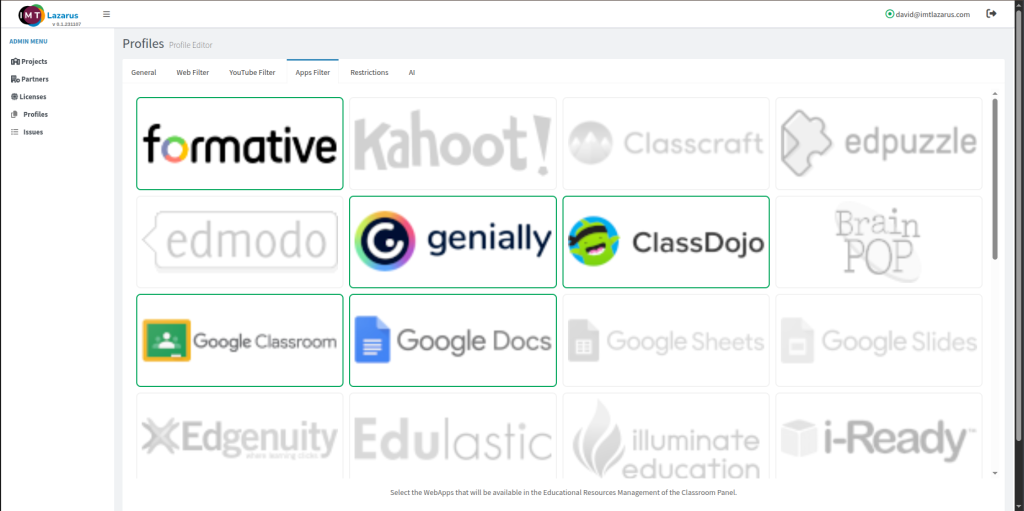
- Educational Application Whitelisting: Features an intuitive application grid layer allowing administrators to dynamically toggle access to specific educational platforms (such as Google Classroom, Genially, and Formative) based on current class compliance baselines (2.6-5.jpg).
Profile Conditional Hierarchy Mapping
The configuration layers combine into a cohesive security matrix, allowing the system to determine real-time access rules:
| Profile Asset Component | Active Filtering Variable | System Enforcement Target |
| Assigned Projects / OUs | Enterprise Tenant Mapping (2.6-1.png) | Restricts or applies policy scope to targeted geographic schools and divisions. |
| Web Filter Module | Category Blocks & SafeSearch (2.6-3.png) | Controls internet access and strips explicit content from search engine results. |
| YouTube Filter Module | Identity Exception Matrices (2.6-4.png) | Adjusts media viewing standards automatically based on student vs. teacher roles. |
| Apps Filter Matrix | Educational App Grid Optimization (2.6-5.jpg) | Approves or gray-scales interactive platforms within the classroom layout. |
👨💻 Administrator Steps
To create or modify a conditional profile blueprint to match specific DepEd user frameworks, follow these dashboard steps:
Commit the Configuration Baseline: Click the green Checkmark/Save button on the lower right of the panel to deploy the profile updates instantly across all connected endpoints.
Access the Central Profile Interface: Log into the management panel, go to the left-hand navigation sidebar (ADMIN MENU), and select Profiles to view your active fleet configuration catalog (2.6-1.png).
Initialize or Edit a Profile Blueprint: Click Create New to build a template from scratch, or click on an existing entry (such as Colegios con MAC) to launch the Profile Editor interface (2.6-2.png).
Bind Organizational Units: In the General tab, select the target schools or division frameworks from the available list to attach them to the current policy profile pipeline.
Configure Search and Web Compliance Filters:
Click on the Web Filter tab to adjust internet categorization blocks (2.6-3.png).
Ensure that Safe-Search toggles for Google and YouTube are marked as Active.
Scroll down to select explicit Block Type checkboxes (By Categories) to mitigate digital safety risks.
Establish User-Role Conditional Exemptions: Navigate to the YouTube Filter tab to adjust visibility permissions based on user status (2.6-4.png). Use the conditional checkboxes (e.g., Public for teachers / staff) to modify policy stringency dynamically during school hours.
Deploy Approved Application Ecosystems: Go to the Apps Filter tab (2.6-5.jpg). Click to highlight and enable required educational applications (such as Google Classroom or ClassDojo), ensuring unauthorized or non-compliant digital platforms remain greyed out and unavailable to users.
🖼️ Visual Evidence